read my blogs. Logon to android81990.blogspot.com
Tuesday, 14 February 2017

New Lollipop update Micromax Q380 Canvas Spark Stock Rom V2
Hi, This is first Approved Micromax Q380 Canvas Spark new Lollipop update Micromax Q380 Canvas Spark Stock Rom V2 and here is a easy and safe tutorial to install new Lollipop update Micromax Q380 Canvas Spark Stock Rom V2. Micromax Q380 Canvas Spark comes with 4.7-inch IPS LCD display which provides 540 x 960 pixels resolution. The Micromax Q380 Canvas Spark is running on the Android 5.0 Android Lollipop operating system. Micromax Q380 Canvas Spark powered by 1.3 GHz Quad-Core with 1 GB RAM.
Preparation of flash or update:
1. Take a backup of your phone Click here.
2. Your phone battery should charge 80% minimum.
3. Read all steps then do it careful.
4. Make sure proper power backup of your PC.
2. Your phone battery should charge 80% minimum.
3. Read all steps then do it careful.
4. Make sure proper power backup of your PC.
Download ROM and Tools of Micromax Q380 Canvas Spark:
| File Name | Download link |
|---|---|
| Micromax Q380 Canvas Spark Stock Rom V2 Lollipop | Download |
| Micromax Q380 Canvas Spark SP Tool V5.1616 | Download |
| Micromax Q380 Canvas Spark USB Driver | Download |
How to install or Flash new Lollipop update Micromax Q380 Canvas Spark Stock Rom V2:
Step 1: Install drivers in your PC (If you feel any problem in install driver then watch this video Click here) and Enable USB Debugging on your Phone. Go to Settings >>> Developer options >>> USB debugging check it ( If your phone have Android 4.2 or upper version then see how to enable Developer options here is guide of this Click here). After then switch off your phone.
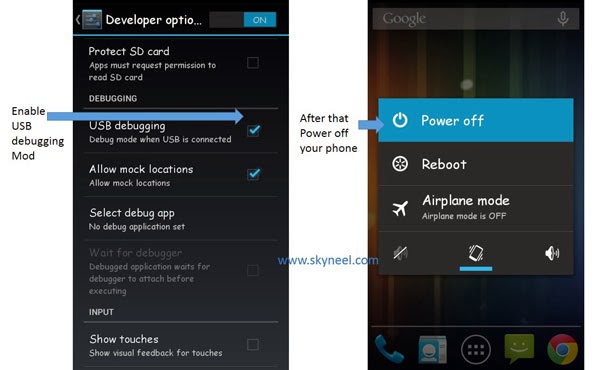
Step 2: Extract the Stock ROM folder where you want then Extract and open the SP Tool. and run Sptool.exe Run as Administrator

Step 3: You will see an SP tool window, now click on the scatter-Loading option in the SP tool. Then you will get the new tab of SP Tool which you ask the location of the scatter file on your PC. You will find this scatter file in the extracted Stock ROM folder. Now go to the Rom folder and select the file “Android_scatter_emmc.txt”. See in this image.

Step 4: Now You will see two options for flashing Rom, first is “firmware upgrade” option which is used to update or flash your Rom without deleting your data and second one is “Download” option this is work for format your phone then flash Stock Rom ( like fresh Rom installation). So choose according to your requirement and I suggest, click on the “Download” option and flash fresh Rom on your phone.
Step 5: Now connect your switch off phone to the PC via USB cable (Make sure your phone is switched off). SP Tool detect your phone and process will start. See in blow image. If Sptool is not recognize/detect your phone then install vcom driver read this post it will help you click here (Driver already in phone flash drive if you don’t have these drivers then install it)

Step 6: Now Sptool start downloading Stock Rom in your phone by flashing.

Note: Don’t interrupt this process as it can potentially brick your device. Make sure no power interruption takes place.
Step 7: After the process complete, a green ring will appear.
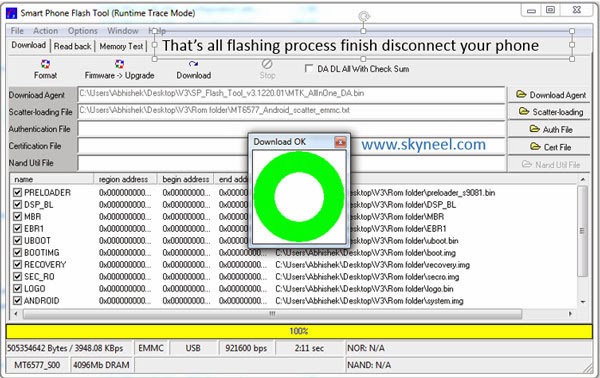
Step 8: Disconnect your phone. Now your phone is updated. If you feel any problem of flashing or update your phone then watch this video click here.
After install new Lollipop update Micromax Q380 Canvas Spark Stock Rom V2, you can root your phone because root allows you to use a maximum of your phone without any restrictions. After root you will install custom apps, Rom and custom setting in your phone. But first read Root Advantage and Disadvantage by this article, then follow this guide How to Root Micromax Canvas Spark Q380.
I hope you like this new Lollipop update Micromax Q380 Canvas Spark Stock Rom V2 installation guide from which you will be able to easily install new Lollipop update Micromax Q380 Canvas Spark Stock Rom V2 without any extra efforts. If feel any problem in this guide then please use comment box. Thanks to all.
Monday, 13 February 2017
THE ANDROID MASTER YOUTUBE CHANNEL
This is my youtube channel. for most updated videos of tips and tricks of free earning and help related videos for android users are available. click to visit my YouTube channel THE ANDROID MASTER

overview for mobiles and tablets on android 7,0 Nougat
Android 7.0 Nougat update overview for smartphones and tablets
Android 7.0 Nougat is official. Hit the links below to jump straight to the latest news or scroll down find out whether your device will receive the Android 7.0 and/or 7.1 Nougat update. The latest news is that the Nougat update for the Honor 8 is beginning February 11 and wrapping up by the end of the month.
Availability by manufacturer
| HTC | Huawei/Honor | ||||||||||||||||||||||||||||||||||||||||||||||||||||||||||||||||||||||||||||||||||||||||||||||||||||||||||||||||||||||||||||||||||||||||||||||||||||||||||||||||||||||||||||||||||||||||||||||||||||||||||
| Lenovo/Motorola | LG | Nvidia | |||||||||||||||||||||||||||||||||||||||||||||||||||||||||||||||||||||||||||||||||||||||||||||||||||||||||||||||||||||||||||||||||||||||||||||||||||||||||||||||||||||||||||||||||||||||||||||||||||||||||
OnePlus
| Samsung | Sony |
[Updated] Location of all 8 hearts in my vodafone app
(Envelope locations added) MyVodafone app – Play Hunt the Hearts and get free data upto 1.7 GB
Everyone should have tried “Spot the Santa” contest during the Christmas week from Vodafone and should have won Free data. They are once again back with a similar kind of contest named “Hunt the Hearts” on the occasion of Valentines day where you can win upto 1.7 GB data free by hunting the hearts.


How to get Free data upto 1.7 GB by playing Hunt the Hearts? :
1 . Download MyVodafone app from HERE or update it if you already have it installed
2 . Register/Login with your vodafone number
3 . Click on the Banner saying “Hunt the hearts” and start playing
4 . Search all screens of the app and tapping on the envelope will reveal your gift
(Some Heart Envelope will appear only on special days, So keep your eyes open)
(Some Heart Envelope will appear only on special days, So keep your eyes open)
5 . Done !! Data you won will be credited in 24 to 72 hours.
Heart Envelope locations :
1 . Click on the Menu option from the top left and select “Shop” option and click “Search” tab and you will find the envelope at the bottom right corner
2 . In the Homescreen itself, you will see “Amazing offers for you”, click on it and at the bottom right corner you will find the envelope
3 . Once again click on the Menu option and select “Roaming” option and select “Within India” and you will see the envelope on the bottom right hand corner
4 . Will update once we find………….
Terms and conditons :
- Get Free 100 MB data on finding 1 heart
- Get Free 400 MB data more on finding 4 hearts
- Get Free 1.2 GB data more on finding 8 hearts
- Applicable only on MyVodafone app
Thursday, 9 February 2017

https://www.youtube.com/watch?v=1M2Po8OI3iQ
How to use Reliance Jio 4G Sim in 3G Android phones (Full Guide)
How to use Reliance Jio 4G Sim to 3G android mobile phone, use Reliance Jio in 3G enabled android phone, use Jio sim in 3G phones, Jio 3G Sim, Jio sim 3G. Yes Here is Trick to use Reliance Jio 4G Sim to 3G android phone. Trick is very simple to all peoples and working perfectly. We have Received requests from Many users “I am unable to use 4G Jio sim to 3G device” or How to use Reliance Jio in 3G android phone. So Here we are come up 3 Awesome working tricks to make your 3G enabled to 4G enabled phone (Only for Jio sim to make it work). So Hurry up and checkout below How to use Reliance Jio sim in 3G android phone.
How to use Reliance Jio Sim in 3G Android device ?
Using Reliance Jio sim in 3G android device is really very simple, their are Many ways to make our 3G device to 4G (Just for Jio Sim to get Network in our mobile phones). I have tried Method 1st in My device and its work smoothly in my Micromax mobile. Their are 2 alternative method also available and you can use them if you device is not MediaTek chipset. So Hurry up and read it now to use 4G Jio sim in 3G android device !!
Steps to use Jio Sim in 3G Phones:-
Method #1 Using Xorware 2G/3G/4G Applications:-
1) First of all, Xorware 2G/3G/4G Switcher & Xorware 2G/3G/4G Interface App (You need to download both Application.
2) Now Open Xorware 2G/3G/4G Interface App.
3) Select Network Mode to 4G LTE.
4) Click on Apply and make changes.
5) Now Switch off your device and Insert Reliance Jio Sim and Switch ON your device again.
6) Now you can use Reliance Jio Sim in 3G Phone.

Method #2 for MediaTek Chipset Processor Enabled devices:-
This is really a great and working method for most of phone who has MediaTek chipset processor in their device. I have tried personally in my Micromax canvas nitro a311 smartphone which is MediaTek chipset enabled phone and this trick is working fine  . Let’s come up on the main topic “How to use Reliance Jio 4G Sim in 3G android mobile phone”. In this Method you have to check your Device is MediaTek chipset or not (we can find this by just downloading CPU-Z app which is less than 1 MB). You must have atleast 4.4 Kitkat or more latest version to make this Trick worked !! Now let’s ready to use Reliance Jio in 3G android device. So Hurry up !!
. Let’s come up on the main topic “How to use Reliance Jio 4G Sim in 3G android mobile phone”. In this Method you have to check your Device is MediaTek chipset or not (we can find this by just downloading CPU-Z app which is less than 1 MB). You must have atleast 4.4 Kitkat or more latest version to make this Trick worked !! Now let’s ready to use Reliance Jio in 3G android device. So Hurry up !!How To Root Android Phone – With/Without PC
How To Root Android Phone – From The Xprivacy Post to Device Emulator Post Everyone was Asking about How To Root Android Phone. We thought to share the trick. The trick is quite easy and straight forward. This trick can be used by each and every Android Device user. We have added an awesome trick for this. You can use our trick and root your phone with or without PC. This is an awesome trick. Rooting is what might as well be called jailbreaking, a method for opening the working framework so you can introduce unapproved (by Google) applications, upgrade the OS, supplant the firmware, overclock (or underclock) the processor, tweak pretty much anything, etc. You all must be thinking that rooting is quite tough and it could brick your phone. But do not worry this does not happen regularly. Rooting is quite safe. Rooting ko toh yun hi log badnam karte hai, takleef toh service centre wale dete hai ????????????. This is the main problem with Rooting. You will void you warranty if you root your phone. Only Xiaomi handsets accepts rooted android device. If you are having a Xiaomi android device then you could feel free to root. If you clearly follow our guidelines then you will never expose your phone to brick. Please do not do any wrong move and do not become extra smart. Follow the guidelines carefully. We have also added the way to un-root your android device.
Advantages :
1) Earn unlimited from apps.
2) Can modify android device at its extreme.
3) Can perform many un-believable task from android device.
Disadvantages :
1) It may void your warranty.
2) Phone may stuck in Boot Loop.
3) Can brick your android device.
About KingoRoot :-
Kingo Android Root is the best one-click Android root software for free. It supports almost any Android device and version. Click to download the latest version of Kingo Android Root below.
You will get greater success rate with PC
How to Root Android Phone using Kingoroot:-
With PC/Laptop:-
How To Enable USB Debugging:-
1) Firstly Goto your Phone Settings.
2) Scroll down and goto “About Phone”.
3) Click On “Build Number” 7 Times.
4) Now a pop up will appear “You Have Now Become A Developer”.
5) Now again goto your Phone settings.
6) Scroll down, there you will see a “Developer Option”.
8) Open it and check “USB Debugging”.
How To Root Android phone With KingoRoot:-
1) Firstly Download KingoRoot for PC Here
2) Now install and open the application.
3) Connect your android phone with data cable to your PC.
4) You will require active internet connection to download device driver and some important files.
5) Now it will install Device driver if it is not installed already.
6) Then click on Root.
7) Wait for some seconds.
8) You will get a success message that you have successfully rooted your android device.
9) Similarly click on un-Root from there to to un-root your android device.
Without PC :
2) Now install and open the app.
3) Click on Start Rooting.
4) It will root your android device within minutes.
About FramaRoot :
Now you can root your android device without PC, just use framaroot. This app including several exploits named as the heroes of the book “The Lord of the Rings” Gandalf, Boromir, Pippin, Legolas, Sam, Frodo, Aragorn and Gimli. You can install Superuser and su binary on phone or tablet from android version 2.x to 4.x. All compatible devices can be found here. Unroot also very simple, just use this option in framaroot application.
(Method #2) – How to root Android phone using FramaRoot App:-
1) Firstly Download Framaroot apk file Here
2) Now install and open the app.
3) Select the Exploit according to your device.
4) If you are having no knowledge about this then select by trial and error method.
5) You will get a Success message that you have successfully rooted your android device.
About IRoot :
iRoot apps are designed by iRoot team, which provide the service of rooting for almost all Android devices with different Android versions. Considering about the advantages of rooting, more and more Android users need to get their devices rooted. With iRoot software, you will never run the risk of bricking your device due to it’s highest success rate.
(Method #3) – How to root android phone using IRoot App:-
1) Firstly Download irooy apk file Here
2) Now install and open the app.
3) Click on Start Rooting.
4) It will root your android device within minutes.
About TowelRoot :
Towelroot is a little instrument (so little that it takes up only 100 kilobytes) that permits you to establish your Android gadget in only a few moments, all by introducing the APK and squeezing a catch. Yes, you read that privilege: no convoluted procedures in which you need to associate your Android to a PC, then reset it, and so on. You should simply tap a catch, and it’s finished.
(Method #4) – How to Root Android phone using Towelroot App:-
1) Firstly Download Towelroot apk file Here
2) Now install and open the app.
3) Click on Start Rooting.
4) It will root your android device within minutes.
For Lollipop Users :
Requirements :
1) Kingroot – Click here to download.
Steps To Root With Kingroot :
1) Download the app from the above link.
2) Now install and open the app.
3) Click on Start Rooting.
4) It will root your android device within minutes.
subscribe-
https://www.youtube.com/channel/UC-OxHZDrFgl7_ewPNvZG3lg
Subscribe to:
Comments (Atom)